Malware vs. Ransomware: How to Spot the Signs of an Infected PC
Last updated: May 19, 2026
Quick Answer: Malware vs. Ransomware. Malware is the broad category covering all malicious software — viruses, spyware, trojans, and more. Ransomware is a specific type of malware that encrypts files and demands payment for their return. Both cause distinct warning signs on an infected PC, and knowing the difference determines how fast (and how safely) the problem gets resolved. If a machine shows symptoms of either, the safest path is a professional secure wipe and clean OS reinstall at a trusted local computer shop — not clicking on sketchy online “repair” pop-ups.
Key Takeaways
- Malware is an umbrella term; ransomware is one dangerous subset of it.
- Common malware signs: random pop-ups, sluggish performance, unfamiliar programs, browser redirects.
- Common ransomware signs: locked files, ransom demand screens, encrypted documents with strange extensions.
- Never pay a ransom — there’s no guarantee files will be returned.
- Avoid clicking “tech support” pop-ups that appear on an infected machine; they’re often scams themselves.
- A secure wipe with a fresh OS reinstall is the most reliable way to eliminate deep infections.
- Bringing the machine to a physical San Antonio computer repair shop ensures proper PC diagnostics and data recovery assessment.
- Professionally refurbished computers with clean OS installs are a cost-effective alternative if a machine is beyond saving.
What Is the Actual Difference Between Malware vs. Ransomware?
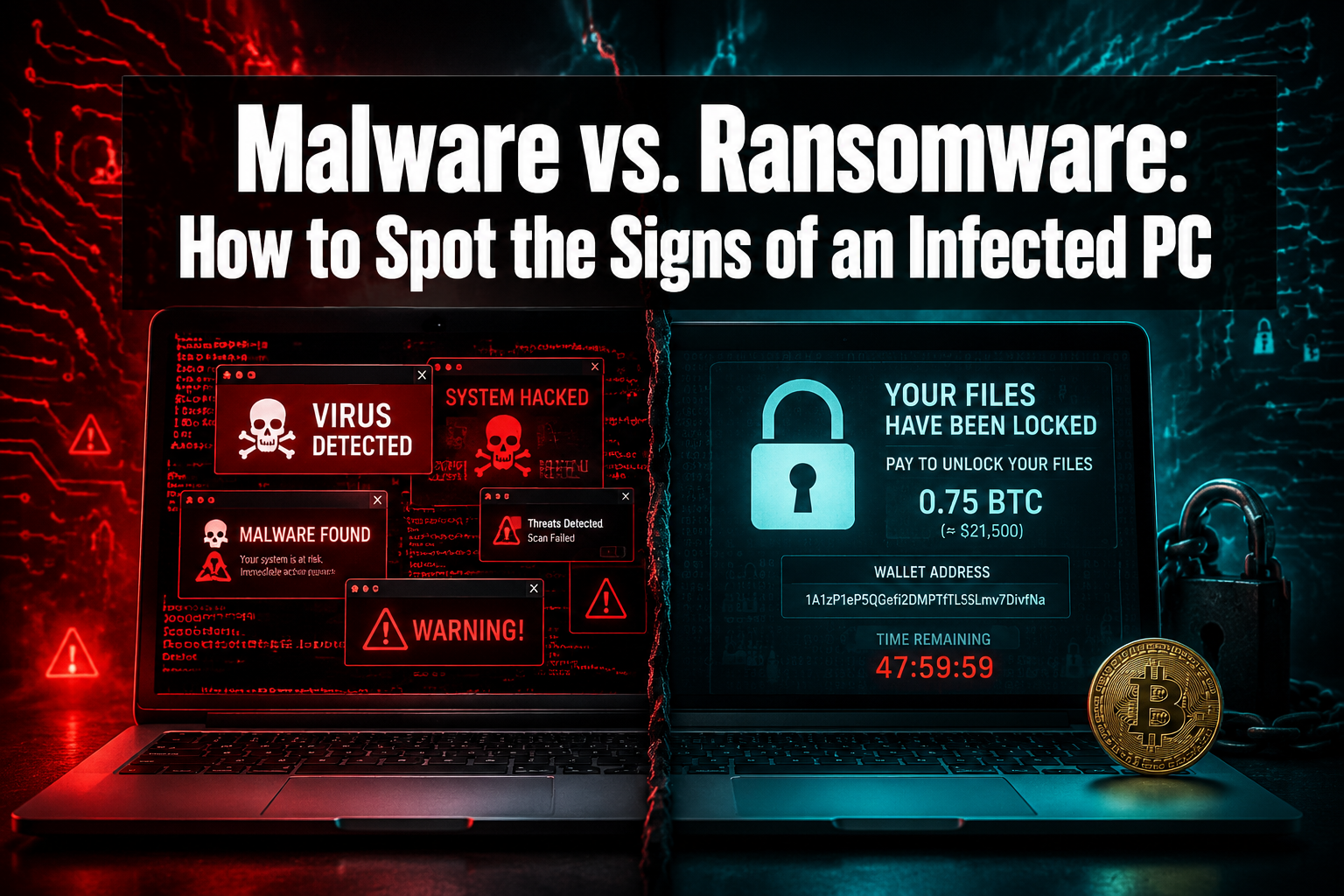
Malware (short for “malicious software”) is any program designed to damage, disrupt, or gain unauthorized access to a computer. It includes viruses, worms, trojans, spyware, adware, and yes — ransomware.
Ransomware is a specific category of malware with one defining behavior: it encrypts files or locks the entire system, then demands a payment (usually in cryptocurrency) to restore access.
Think of it this way:
| Feature | Malware (General) | Ransomware (Specific) |
|---|---|---|
| Goal | Steal data, spy, damage, or control | Extort money via encryption |
| Visibility | Often hides in the background | Announces itself with a ransom note |
| File impact | May corrupt or delete files | Encrypts files, holds them hostage |
| User notification | Usually none — works silently | Displays a payment demand screen |
| Recovery | Antivirus scan + cleanup may work | Often requires full secure wipe |
Common mistake: Assuming a slow computer is “just old.” Malware frequently disguises itself as normal system slowdown. If a three-year-old machine with an SSD suddenly crawls, infection should be on the suspect list.
How Do You Know If Your PC Has Malware?
General malware infections produce a pattern of symptoms that get worse over time. Here are the most reliable warning signs:
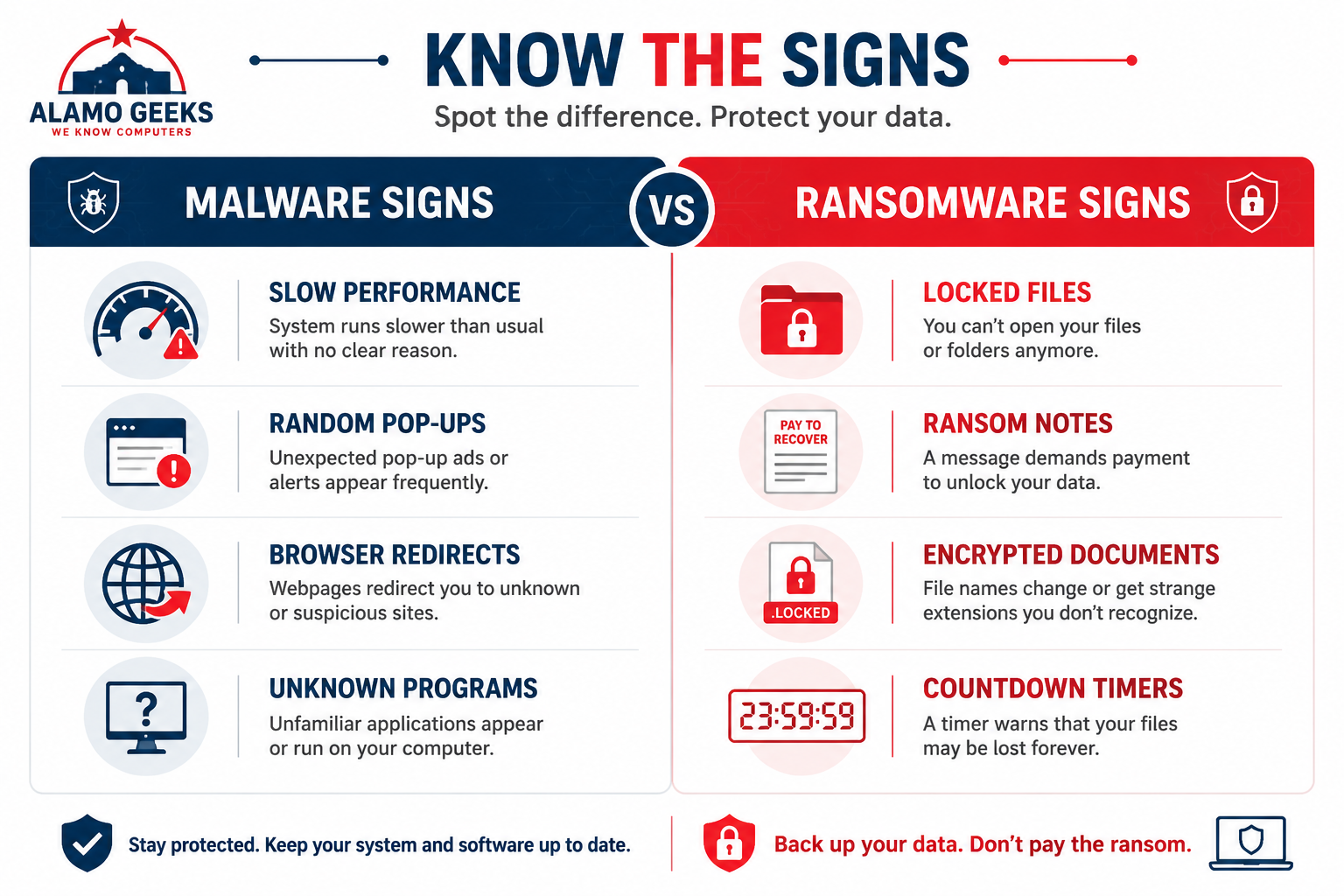
- Random pop-ups and ads — especially when no browser is open.
- Extreme slowdowns — programs take forever to load, the cursor freezes, or the system hangs during basic tasks like opening a folder.
- Unknown programs appearing — check the taskbar and startup list for software that wasn’t intentionally installed.
- Browser hijacking — the homepage changes without permission, search results redirect to unfamiliar sites, or new toolbars appear.
- Disabled antivirus — some malware specifically targets and disables security software.
- Unusual network activity — the hard drive light blinks constantly or the fan runs at full speed even when idle, suggesting background data transmission.
- Friends receiving strange messages — if contacts report spam emails or social media messages from the infected account, a trojan may be harvesting credentials.
Edge case: Some spyware produces zero visible symptoms. It sits quietly, logging keystrokes and capturing passwords. This is why periodic system optimization and security scans matter even when everything “feels fine.”
If a laptop is showing several of these signs, a professionally refurbished ThinkPad with a clean Windows 11 install can serve as a reliable, secure replacement while the infected machine gets diagnosed.
How Do You Know If Your PC Has Ransomware?
Ransomware doesn’t hide. It wants to be seen — because the entire business model depends on panic.
Signs of a ransomware infection:
- Ransom note on screen — a full-screen message demanding payment in Bitcoin, often with a countdown timer.
- Files renamed with strange extensions — documents suddenly end in
.locked,.crypt,.encrypted, or random strings. - Inability to open files — Word docs, photos, spreadsheets, and PDFs all return errors.
- Desktop wallpaper changed — many ransomware variants replace the wallpaper with payment instructions.
- System restore disabled — advanced ransomware deletes shadow copies and restore points to prevent easy recovery.
Critical rule: Never pay the ransom. According to cybersecurity professionals across the industry, paying does not guarantee file recovery. It funds criminal operations and often marks the victim for repeat attacks.
What to do instead:
- Disconnect the PC from Wi-Fi and Ethernet immediately to prevent spread.
- Do not attempt to “fix” it using online pop-up repair tools — these are frequently additional scams.
- Bring the machine to a trusted, physical San Antonio computer repair storefront for professional PC diagnostics.
Why Are Online “Repair” Pop-Ups Dangerous?
Here’s the scenario: a machine starts acting strange, and suddenly a pop-up appears claiming “Your PC is infected! Call this number for immediate support!” That pop-up is almost certainly part of the problem, not the solution.
These fake tech support scams:
- Charge hundreds of dollars for “repairs” that install more malware.
- Request remote access to the machine, giving criminals full control.
- Harvest credit card numbers and personal information.
The safe alternative: Walk the machine into a local computer shop with real technicians, a physical address, and verifiable expertise. A storefront like Alamo Geeks in San Antonio provides flat-fee secure wipes, a Certificate of Data Destruction when needed, and clean OS reinstalls using licensed Windows or Linux. No mystery. No remote access to strangers.
For businesses, Alamo Geeks also offers Onsite Business Pickup for compromised machines, so infected systems don’t sit on a network any longer than necessary.
What Happens During a Professional Malware Removal and Secure Wipe?
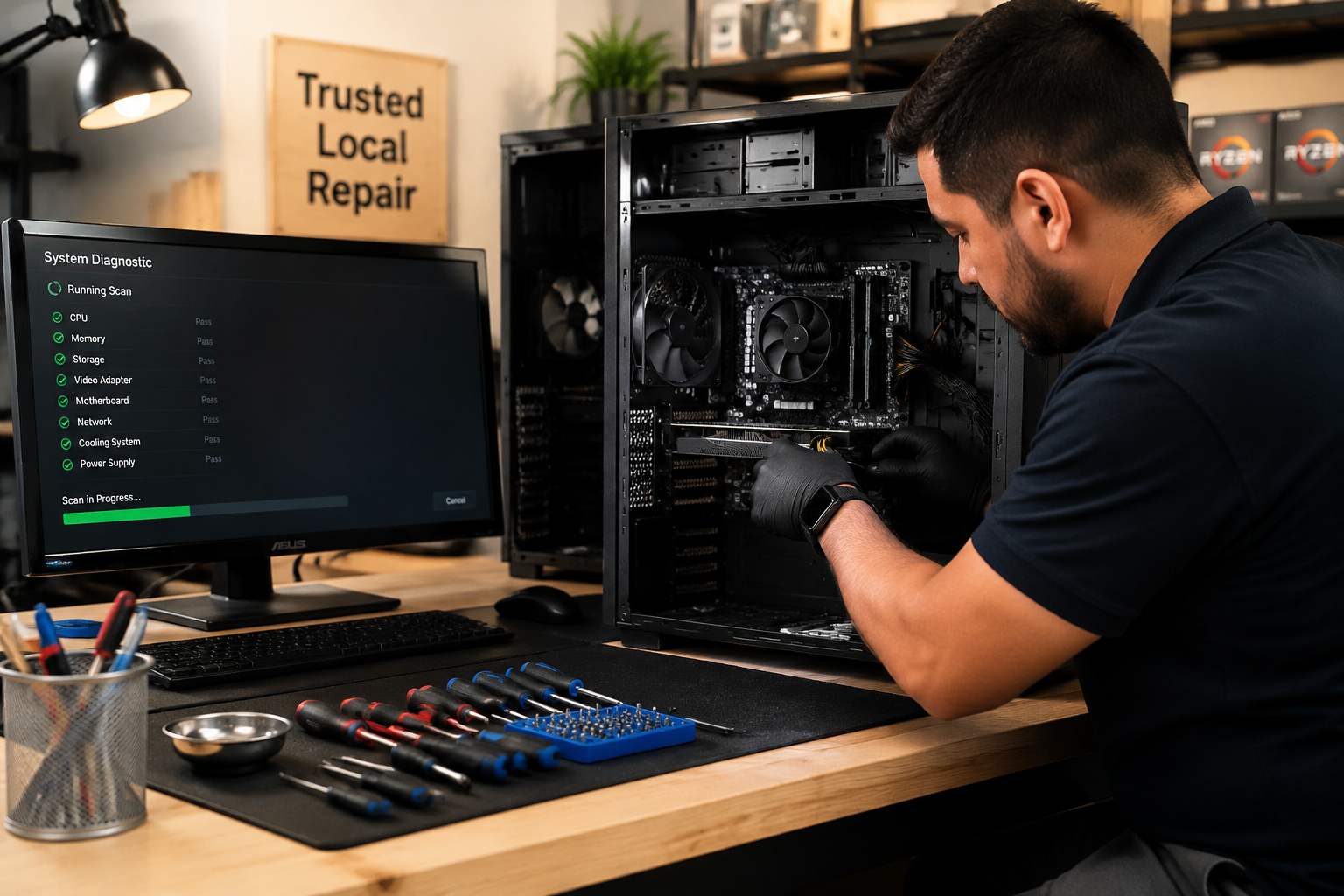
A proper malware removal at a trusted shop follows a structured process:
- Initial diagnostics — the technician boots the machine in a safe environment and assesses the infection type and severity.
- Data triage — recoverable personal files (documents, photos) are identified and safely extracted to clean media when possible. This is where professional data recovery skills matter.
- Secure wipe — the entire drive is wiped using methods that meet data destruction standards. For business machines, a Certificate of Data Destruction can be issued.
- Fresh OS install — a clean, licensed copy of Windows 11 (or Linux, depending on preference) is installed with current security patches.
- Hardware check — while the machine is open, the technician inspects for failing components. An SSD upgrade, for example, can dramatically improve performance and boot times on older hardware.
- Final testing — the system is stress-tested to confirm stability before return.
Cost perspective: A professional secure wipe and reinstall at a flat fee is almost always cheaper than buying a new machine. But if the hardware itself is aging or damaged, a Professionally Refurbished desktop with an Intel Core i7 and 512GB NVMe SSD delivers business-grade performance at a fraction of new retail cost — and it’s better for the environment.
How to Protect Your PC After Cleaning: 5 Essential Maintenance Tips
Once a machine is clean, keeping it that way requires discipline:
- Keep the OS and software updated — most malware exploits known vulnerabilities that patches already fix.
- Use a reputable antivirus — Windows Defender (built into Windows 11) is genuinely solid in 2026. Pair it with safe browsing habits.
- Don’t download software from random sites — stick to official sources and verified repositories.
- Use strong, unique passwords — a password manager eliminates the temptation to reuse credentials across sites.
- Back up files regularly — an external drive or cloud backup means ransomware loses its leverage entirely. If files are backed up, encryption is an inconvenience, not a catastrophe.
Choose a hardware upgrade if: the machine is more than 6-7 years old, has a mechanical hard drive, or runs less than 8GB of RAM. These specs make a system both slow and more vulnerable. An affordable refurbished laptop with an SSD and 16GB RAM is a practical upgrade path.
Malware vs. Ransomware: When to Repair and When to Replace
Not every infected PC is worth saving. Here’s a practical decision framework:
| Situation | Recommended Action |
|---|---|
| Infection on a PC less than 5 years old with SSD | Secure wipe + OS reinstall (best value) |
| Infection on a PC with failing hardware | Replace with a professionally refurbished system |
| Ransomware with no backup and critical business data | Professional data recovery attempt, then wipe |
| Repeated infections on the same machine | Full hardware audit — possible rootkit or firmware-level compromise |
| Gaming PC with infection | Wipe, reinstall, verify GPU and storage health — consider a Custom Gaming Rig with dedicated GPU if the build is outdated |
For gamers specifically: malware that targets gaming PCs often aims to steal account credentials or hijack GPU resources for cryptocurrency mining. If a gaming rig’s GPU runs at 100% utilization while idle, that’s a red flag. A budget esports build with verified clean hardware can get players back online fast.
Sustainable High-Performance Tech: The Smarter Recovery Path
Every machine that gets securely wiped and restored instead of thrown away keeps electronics out of landfills. And every Professionally Refurbished Computer that replaces a compromised machine extends quality hardware’s useful life.
Alamo Geeks operates on this principle: the “Security-to-Performance” cycle. Compromised machines receive certified data destruction. Then the hardware is professionally tested, upgraded with components like NVMe SSDs and fresh RAM, and returned to service. It’s Sustainable High-Performance Tech — better for budgets and better for the planet.
For businesses cycling out older machines, Free Computer Recycling and Onsite Business Pickup ensure responsible disposal with documented chain of custody.
Conclusion
Understanding the difference between malware vs. ransomware isn’t just academic — it determines how quickly and safely a compromised PC gets back to working order. Malware hides; ransomware announces itself. Both require professional attention, not panicked clicks on fake repair pop-ups.
Actionable next steps:
- If a PC shows infection symptoms, disconnect it from the network immediately.
- Do not pay ransoms or call numbers from pop-up warnings.
- Bring the machine to a trusted physical San Antonio computer repair shop for professional diagnostics and a secure wipe.
- After cleanup, follow the five maintenance tips above to stay protected.
- If the hardware is too old or damaged, consider a professionally refurbished desktop or laptop with a clean OS, SSD storage, and a warranty — at a price that respects the budget.
Stay sharp. Stay secure. And when in doubt, trust a real technician over an internet pop-up.
FAQ
Q: Can antivirus software remove ransomware? A: Antivirus can sometimes quarantine the ransomware executable, but it typically cannot decrypt already-locked files. A secure wipe and OS reinstall is the most reliable fix.
Q: Is ransomware worse than other malware? A: Ransomware causes the most immediate, visible damage because it locks files and demands payment. But spyware that silently steals banking credentials can be equally devastating over time.
Q: How much does professional malware removal cost? A: Flat-fee secure wipes and OS reinstalls at a local shop like Alamo Geeks are typically far less expensive than buying a new machine. Exact pricing depends on the severity and whether data recovery is needed.
Q: Can I remove malware myself? A: Mild adware infections can sometimes be handled with reputable antivirus tools. But if the system is severely compromised — especially with ransomware — DIY attempts risk spreading the infection or permanently losing data.
Q: Does malware affect Macs and Linux machines? A: Yes, though Windows PCs are targeted far more frequently due to market share. No operating system is immune.
Q: How do I know if a repair pop-up is legitimate? A: Legitimate software never displays unsolicited pop-ups demanding immediate phone calls or payments. If a pop-up appears with a phone number and urgent language, it’s almost certainly a scam.
Q: Will a factory reset remove all malware? A: A standard factory reset removes most malware. However, advanced rootkits can survive resets. A professional secure wipe that overwrites the entire drive is more thorough.
Q: How often should I back up my files? A: Weekly at minimum for personal use. Daily for business-critical data. Automated cloud backups are the easiest way to maintain consistency.
Q: Can malware damage hardware? A: Rarely directly, but malware that maxes out CPU or GPU usage for extended periods can accelerate wear and cause overheating, which shortens component lifespan.
SEO Meta Title: Malware vs. Ransomware: How to Spot an Infected PC
SEO Meta Description: Learn the key differences between malware vs. ransomware, spot infection warning signs on your PC, and find out when to get professional repair or replacement in 2026.