When to Upgrade vs. Replace Your Office Computers: A Small Business Guide to Smarter Decisions
Last updated: May 20, 2026
Quick Answer: For most small businesses, the decision to upgrade or replace office computers comes down to three factors: device age, the cost of employee downtime, and whether a targeted upgrade (RAM, SSD) can extend useful life by two or more years. Machines under five years old with 8th-gen Intel or newer processors are almost always worth upgrading. Machines older than that are usually cheaper to replace with professionally refurbished commercial-grade hardware than to keep alive.
Key Takeaways
- A $150 SSD + RAM upgrade can add 2–3 productive years to a computer that’s 3–5 years old with a decent processor.
- Office Computers older than 6 years cost more in downtime and repairs than they save by avoiding replacement.
- Refurbished enterprise workstations (Dell OptiPlex, Lenovo ThinkCentre) offer 70–80% savings over new retail and perform identically for standard office tasks.
- Always factor in employee downtime costs, not just the sticker price of hardware. A slow PC costing an employee 30 minutes per day adds up fast.
- Data security matters during any transition. Old drives must be wiped with certified data destruction, not just reformatted.
- Free computer recycling programs can offset disposal costs and keep e-waste out of landfills.
- Windows 11 hardware requirements (TPM 2.0, 8th-gen Intel or newer) create a hard cutoff for many older machines, making replacement the only path to staying current.
- A local computer shop with hands-on diagnostics can assess your fleet faster and more accurately than guessing from spec sheets.
How Do You Decide Whether to Upgrade or Replace Office Computers?
Use a simple three-question framework. If you answer “no” to any of these, replacement is likely the better investment.
- Is the processor 8th-gen Intel Core (or AMD Ryzen 2000-series) or newer? If yes, the CPU still has legs. If no, upgrades won’t fix the bottleneck.
- Can a RAM and SSD upgrade bring the machine to 16 GB RAM and NVMe storage for under $200? If yes, that’s a strong ROI. If the motherboard can’t support these upgrades, you’re stuck.
- Is the machine compatible with your current operating system and security requirements? Windows 11 requires TPM 2.0 and specific processor generations. Machines that can’t run it will lose security updates.
Decision rule: Choose to upgrade if the computer passes all three checks. Choose to replace if it fails even one.
A common mistake is upgrading a machine with a 4th- or 5th-gen processor. The SSD will make it feel faster for a few months, but the CPU will bottleneck productivity in any modern browser with 15+ tabs, video calls, or cloud-based applications.
What’s the Real ROI of Upgrading Office Computer Hardware?
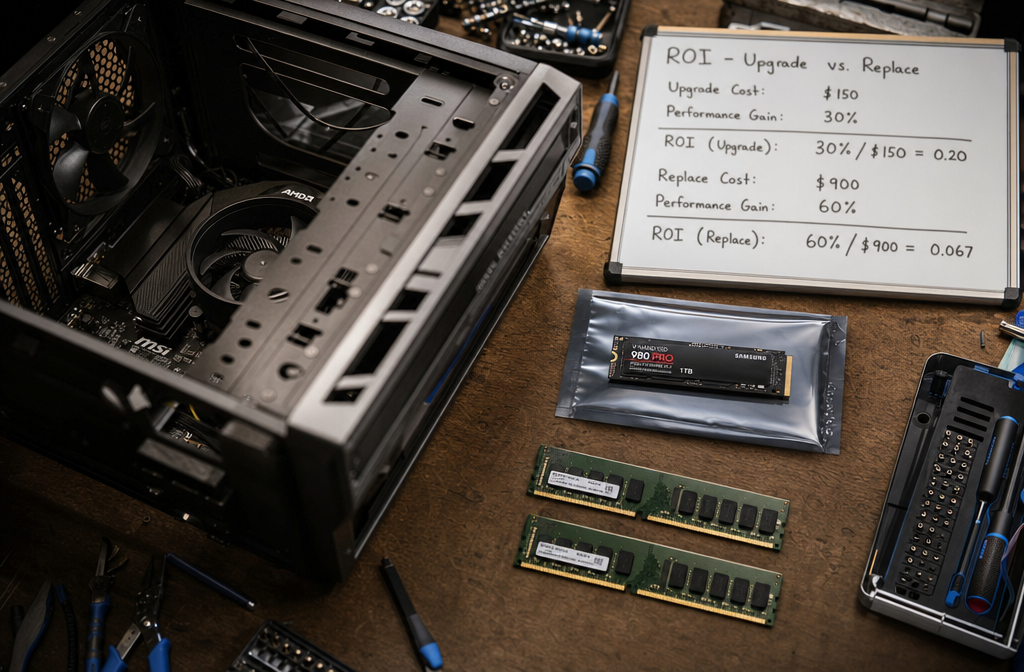
A targeted upgrade delivers the highest return when the existing chassis and processor are still capable. Here’s a practical framework:
| Factor | Upgrade Scenario | Replace Scenario |
|---|---|---|
| Device age | 3–5 years | 6+ years |
| Typical cost | $100–$250 (RAM + SSD) | $250–$500 (refurbished commercial-grade) |
| Performance gain | 2–4x faster boot and app load times | Full modern platform with warranty |
| Expected additional lifespan | 2–3 years | 4–6 years |
| Downtime during transition | 30–60 minutes per machine | 1–2 hours per machine (with data migration) |
| OS compatibility | Must already meet Windows 11 requirements | Ships with Windows 11 Pro |
Example: A five-person office with machines averaging 4 years old could upgrade each to 16 GB RAM and add a 512 GB NVMe SSD for roughly $200 per workstation, totaling $1,000. The same office buying five new retail desktops would spend $3,500–$5,000. But if those machines are 7 years old with 4th-gen processors, the $1,000 in upgrades buys maybe 12 months of marginal improvement before the same problems return.
The hidden cost most businesses miss: employee downtime. If a slow computer wastes just 20 minutes per employee per day, that’s roughly 87 hours per employee per year. Multiply by even a modest $20/hour loaded labor cost, and each slow machine costs $1,740 annually in lost productivity. That number alone justifies either upgrading or replacing immediately.
Which Office Computer Upgrades Deliver the Biggest Performance Gains?
An SSD upgrade is the single highest-impact change for any office PC still running a mechanical hard drive. Boot times drop from 2–3 minutes to under 20 seconds. Application launches become near-instant.
Here are the upgrades ranked by impact-per-dollar for typical office workloads:
- SSD (NVMe or SATA): The #1 upgrade. A 1 TB NVMe SSD transforms a sluggish machine. Choose NVMe if the motherboard has an M.2 slot; SATA SSDs work in older systems.
- RAM (to 16 GB minimum): Modern browsers and cloud apps consume 6–10 GB easily. An 8 GB RAM upgrade on a machine with 8 GB existing brings it to 16 GB, which is the sweet spot for office productivity in 2026.
- Operating system reload: A fresh Windows install removes years of software bloat. Combined with new hardware, this can make a 4-year-old machine feel new.
- Monitor upgrade: Often overlooked. A widescreen conferencing monitor with built-in speakers and webcam reduces desk clutter and improves video call quality.
Edge case: If your team runs design software, video editing, or local AI workstations, a GPU upgrade matters more than it does for general office use. For standard email, spreadsheets, and browser-based apps, integrated graphics are fine.
When Is Replacement the Smarter Financial Move?
Replacement wins when the total cost of upgrades approaches 50% or more of a quality replacement machine’s price, or when the platform itself is obsolete.
Replace when:
- The motherboard lacks M.2 NVMe slots and maxes out at 8 GB RAM
- The processor predates Intel 6th-gen or AMD Ryzen 1st-gen
- The machine can’t run Windows 11 (no TPM 2.0 support)
- Repair frequency has increased (failing fans, capacitor issues, intermittent crashes)
- Your business needs have outgrown the hardware class entirely
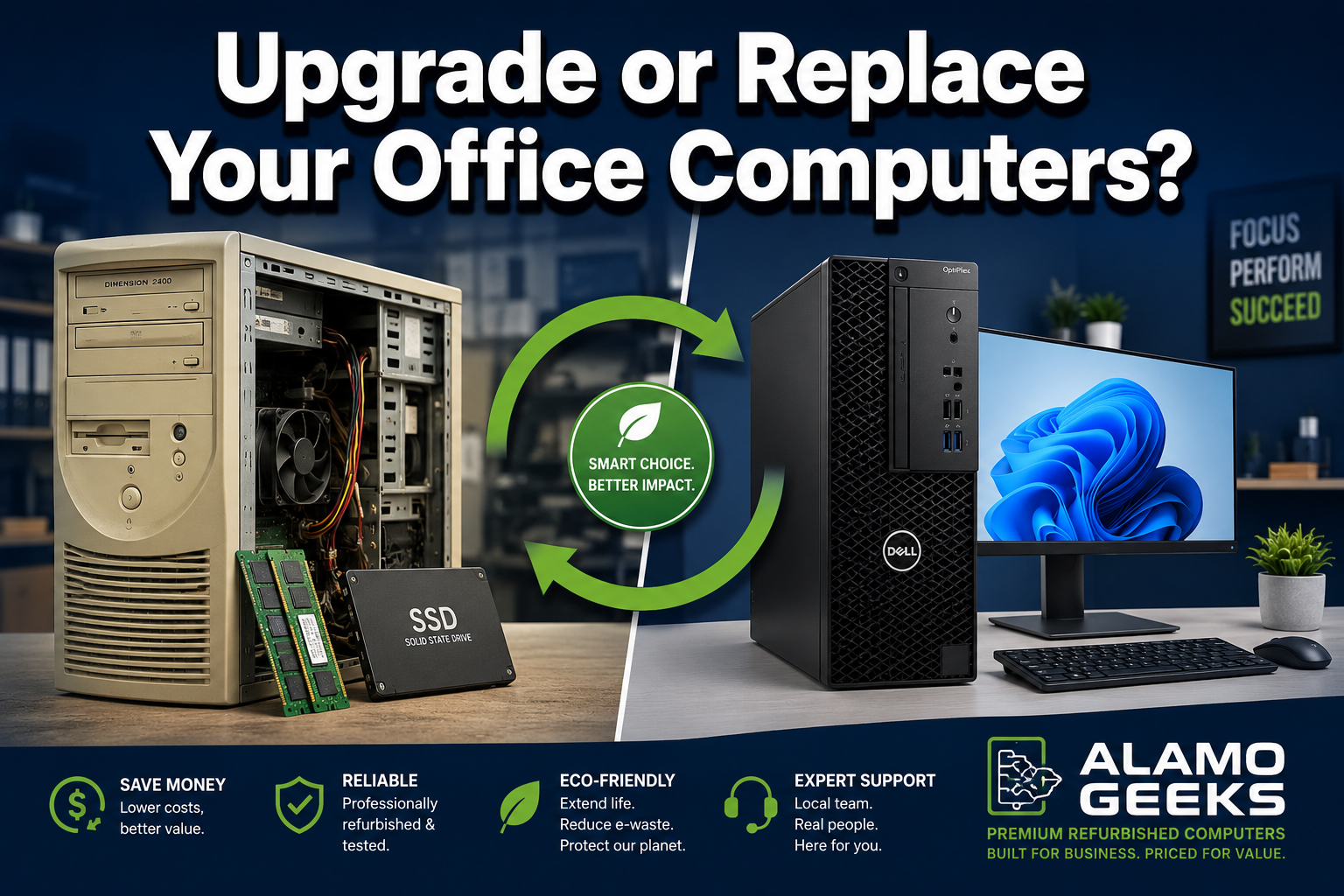
A professionally refurbished commercial workstation is the best-kept secret in small business IT. Enterprise machines like the Dell OptiPlex 5060 with an 8th-gen i5, 16 GB RAM, and 512 GB NVMe were built for corporate fleets. They’re designed for reliability, easy serviceability, and long duty cycles. When they come off a three-year corporate lease, they still have years of productive life remaining.
The difference between refurbished and new comes down to cosmetics and warranty length, not capability. A refurbished Dell OptiPlex with an 8th-gen i5 processor handles Office 365, Zoom, QuickBooks, and browser-based CRMs without breaking a sweat. And it costs a fraction of a new retail machine with similar specs.
What About Data Security When Retiring Old Office PCs?
This is the step most small businesses skip, and it’s the most dangerous one to ignore. Simply deleting files or even reformatting a drive does not destroy the data. Recovery tools can pull sensitive customer records, financial data, and credentials from a “wiped” drive in minutes.
Every retired business computer should receive a Certificate of Data Destruction verifying that drives were wiped to NIST 800-88 standards or physically destroyed. This isn’t optional for businesses handling customer data, health records, or financial information. It’s a liability issue.
Checklist for secure hardware retirement:
- Inventory all machines being retired (serial numbers, assigned users)
- Back up any needed data to secure cloud or new hardware
- Wipe all drives using certified data destruction methods
- Obtain a Certificate of Data Destruction for compliance records
- Recycle or donate hardware through a verified program
- Update your IT asset register
How Can Small Businesses Upgrade and Replace at the Same Time?
Here’s where the math gets interesting. The smartest approach for a small business fleet isn’t purely upgrade or purely replace. It’s a hybrid strategy.
Step 1: Audit your fleet. Sort machines into three buckets:
- Keep and upgrade: 3–5 years old, 8th-gen+ processor, passes the three-question test above
- Replace: 6+ years old, can’t run Windows 11, or failing hardware
- Specialized needs: Machines for design, AI, gaming, or heavy computation that need custom builds
Step 2: Source replacements wisely. For standard office roles, professionally refurbished computers from enterprise lines (Dell OptiPlex, Lenovo ThinkCentre, HP EliteDesk) deliver the best value. A machine like the Dell OptiPlex 7060 SFF with i7-8th-gen, 32 GB RAM, and 512 GB NVMe handles anything a typical office worker throws at it.
For staff who need portable options, refurbished business-class laptops like the HP EliteBook 840 G5 offer the same durability and performance advantages.
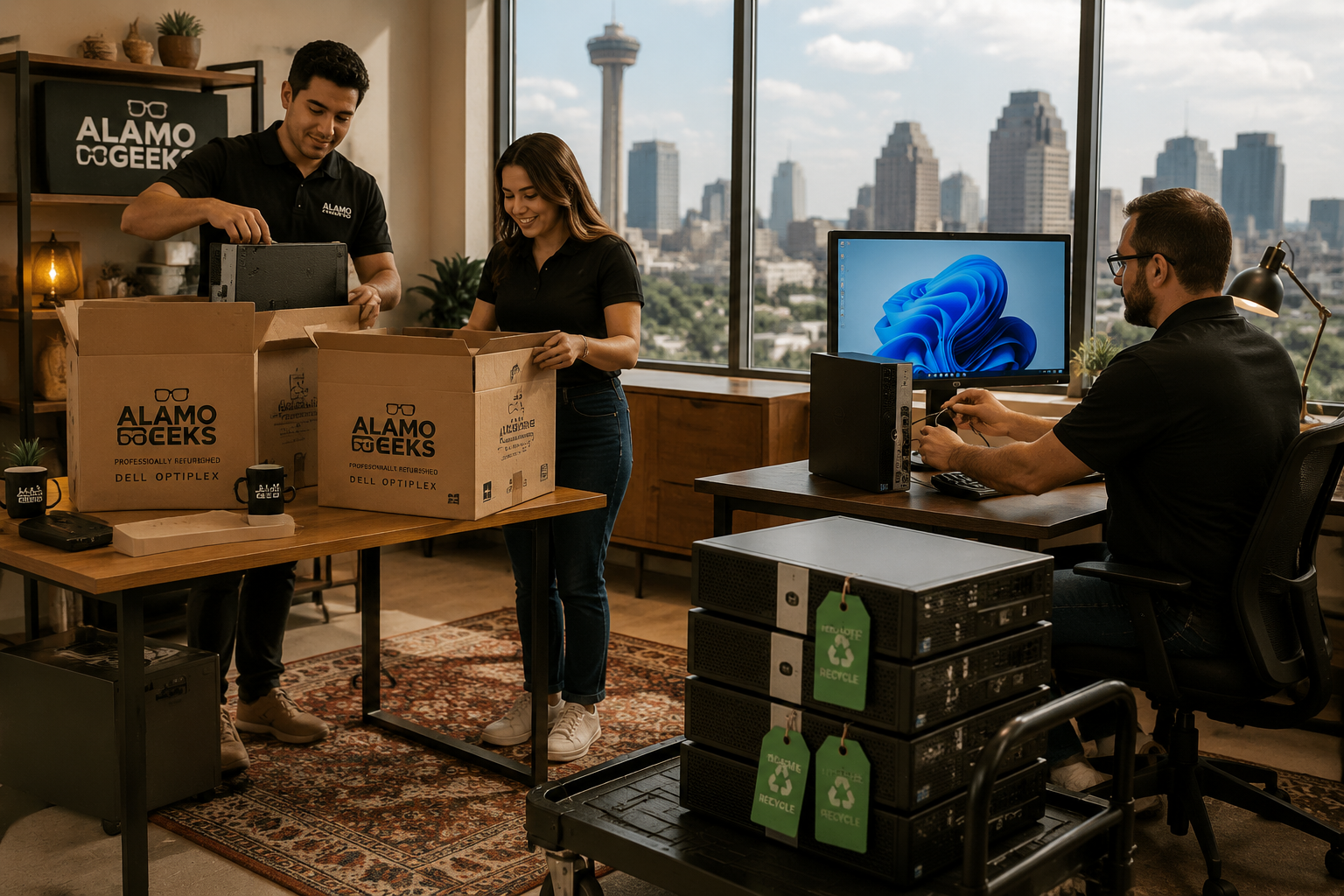
Step 3: Responsibly retire old hardware. Free computer recycling with onsite business pickup means the old fleet doesn’t sit in a closet becoming a data breach waiting to happen. A local computer shop that handles both sides of this equation, supplying refurbished replacements and securely recycling old machines, saves time and reduces risk.
What About Energy Efficiency and Sustainability?
Extending hardware life through upgrades is inherently sustainable. Manufacturing a new computer generates an estimated 300–400 kg of CO2 (based on lifecycle analyses from major manufacturers). Every year you extend a machine’s life avoids that footprint.
When replacement is necessary, choosing refurbished over new doubles the sustainability benefit: the machine avoids the landfill, and no new manufacturing resources are consumed. This is the core of the tech circular economy, and it’s where sustainable high-performance tech and smart budgeting align perfectly.
Green computing tips for small offices:
- Enable power management settings on all workstations (sleep after 10 minutes of inactivity)
- Choose SFF (small form factor) desktops over full towers when possible; they draw 35–65W vs. 150W+
- Consolidate print/scan/copy to one efficient multifunction device
- Recycle all retired electronics through certified programs rather than general waste
FAQ
Q: How long should an office computer last? A: A well-maintained business-class desktop (Dell OptiPlex, Lenovo ThinkCentre) typically lasts 5–7 years. With a mid-life SSD and RAM upgrade, the useful range extends to the higher end.
Q: Is 8 GB of RAM enough for office work in 2026? A: Barely. With modern browsers, cloud apps, and video conferencing running simultaneously, 16 GB is the practical minimum. Budget for a RAM upgrade if your machines are at 8 GB.
Q: Can I upgrade a laptop the same way as a desktop? A: Most business-class laptops allow RAM and SSD upgrades. Consumer laptops increasingly solder components in place, making upgrades impossible. Check your specific model before purchasing parts.
Q: What’s the difference between refurbished and used computers? A: A “used” computer is sold as-is. A professionally refurbished computer has been tested, repaired if needed, upgraded with current components (SSD, RAM, fresh OS install), and backed by a warranty. The difference in reliability is significant.
Q: Should I buy a custom PC build for my office? A: For standard office tasks, no. Refurbished enterprise machines are cheaper and purpose-built for business. Custom builds make sense for specialized workloads: AI processing, video editing, 3D rendering, or custom gaming rigs for creative studios.
Q: How do I know if my computer supports Windows 11? A: Run Microsoft’s PC Health Check app. It tests for TPM 2.0, compatible processor, and sufficient RAM. Generally, 8th-gen Intel and Ryzen 2000-series or newer processors qualify.
Q: What should I do with old computers that still work? A: Don’t let them sit in a closet. Have the data securely destroyed, obtain a Certificate of Data Destruction, and recycle them through a free computer recycling program. Working machines can be refurbished and given a second life.
Q: Is it worth repairing a computer that’s out of warranty? A: It depends on the repair. A $50 fan replacement on a 3-year-old machine is worthwhile. A motherboard replacement on a 7-year-old system usually isn’t, unless the rest of the components are still strong and the machine has sentimental or specialized value.
Q: How much does PC diagnostic service typically cost? A: At a local computer shop, diagnostics typically run $30–$75. Many shops, including those offering IT support and technology consulting, will apply the diagnostic fee toward the repair if you proceed.
Conclusion
The decision to upgrade or replace office computers doesn’t have to be complicated. Audit your fleet against the three-question framework: processor generation, upgrade ceiling, and OS compatibility. Upgrade the machines that pass. Replace the ones that don’t, and choose professionally refurbished enterprise hardware to stretch your budget two to three times further than retail.
Most importantly, don’t ignore the machines you’re retiring. Secure data destruction and responsible recycling protect your business and keep electronics out of landfills.
Your next step: Take 15 minutes to inventory your office machines. Write down the processor generation, current RAM, and storage type for each one. That list alone will tell you exactly which machines to upgrade, which to replace, and how much budget you’ll need. And if you’re in San Antonio, Alamo Geeks can handle both sides: pick up your old fleet for free with onsite business pickup, provide a Certificate of Data Destruction, and supply your team with affordable, tested, enterprise-class refurbished workstations ready to work on day one.
SEO Meta Title: Upgrade or Replace Office Computers: Small Business Guide
SEO Meta Description: Learn when to upgrade or replace office computers with this small business guide. Compare costs, ROI, and find affordable refurbished workstation options.