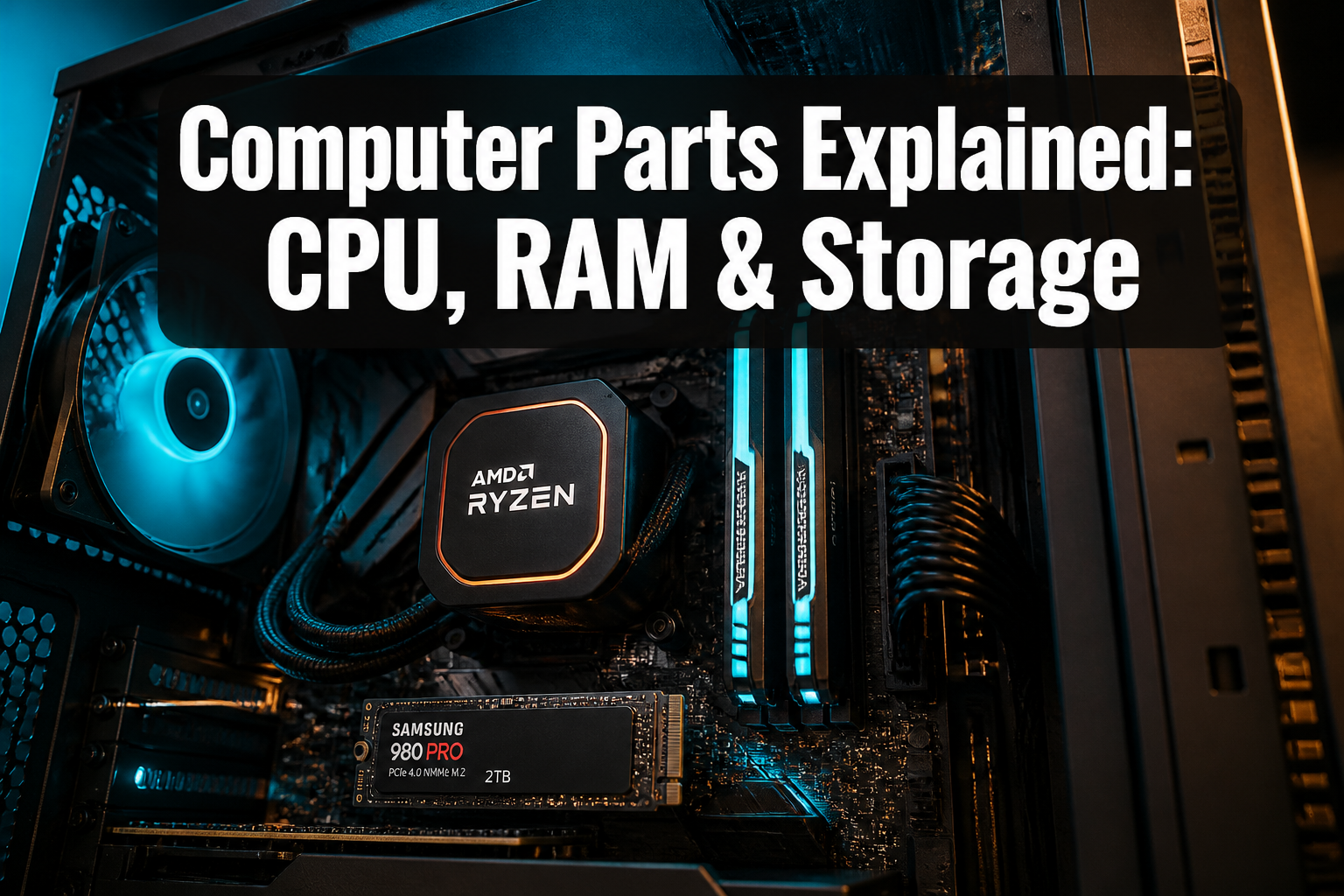
What Are the 3 Main Parts of a Computer? (CPU, RAM, STORAGE)
Last updated: May 4, 2026
Quick Answer: Computer parts explained guide 2026. A computer has three core components that determine its speed and capability: the CPU (processor), RAM (short-term memory), and storage (long-term memory). For basic home or business use in 2026, a minimum of an Intel 6th- or 7th-generation CPU, 8GB of RAM, and a solid-state drive (SSD) will handle everyday tasks reliably. Understanding these parts helps you buy smarter — whether you’re choosing a new PC, a refurbished machine, or planning an upgrade.
Key Takeaways
- CPU, RAM, and storage are the three parts that most directly affect how fast and capable a computer feels day-to-day.
- The CPU executes every instruction the computer runs — it’s the brain of the machine. [1]
- RAM is temporary working memory; more of it means smoother multitasking. [1]
- SSDs are dramatically faster than traditional hard drives and should be the minimum storage standard for any PC purchased in 2026. [1]
- For basic home and business use, a 6th- or 7th-gen Intel CPU, 8GB RAM, and a 240GB+ SSD is a proven, capable baseline.
- Professionally refurbished computers can deliver these specs at a fraction of new-PC prices.
- Knowing these specs protects you from buying underpowered hardware that slows down within a year.
- The motherboard connects all components — it determines which CPUs and RAM types are compatible. [5]
- DDR5 RAM is required for the newest Intel Core Ultra 200 and AMD Ryzen 7000/9000 CPUs; older platforms use DDR4. [4]
- A GPU (graphics card) matters most for gaming, video editing, and AI workloads — not for basic office use.
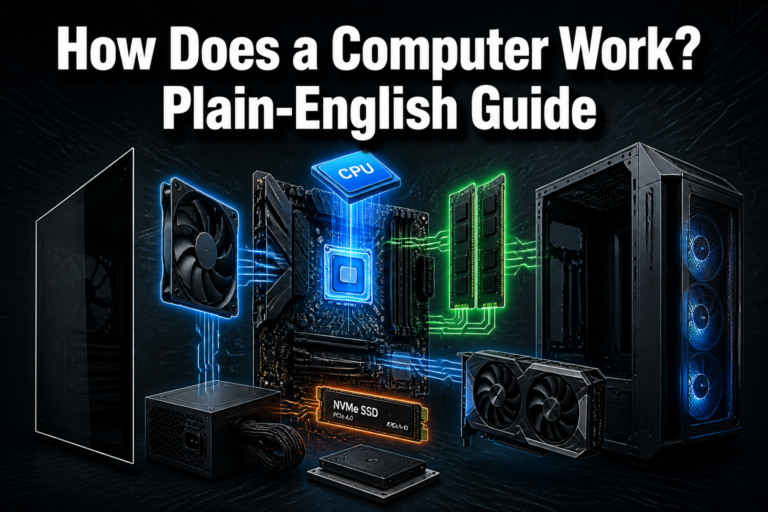
Computer Parts Explained: What Does Each Component Actually Do?
Every computer — desktop or laptop — is built around the same core components. Each one has a specific job, and understanding that job helps you evaluate any PC you’re considering buying.
Here’s a plain-language breakdown:
| Component | Job | Analogy |
|---|---|---|
| CPU | Executes instructions and calculations | The brain |
| RAM | Holds data for programs currently running | Your desk workspace |
| Storage (SSD/HDD) | Saves files, apps, and the OS permanently | Your filing cabinet |
| Motherboard | Connects everything together | The road network of the city |
| GPU | Renders graphics and video | The artist |
| Power Supply | Delivers electricity to all components | The electrical grid |
CPU: The Central Processing Unit
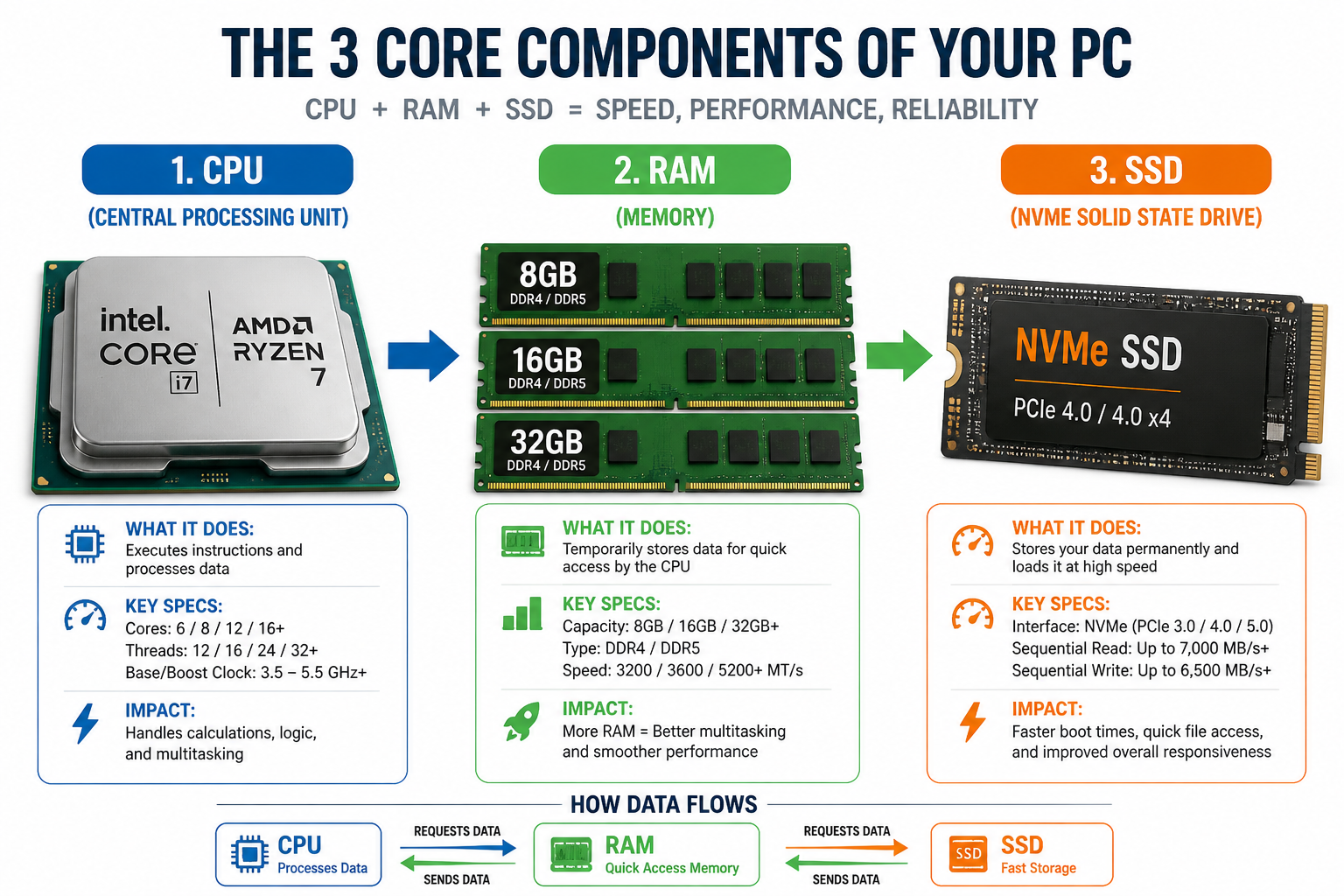
The CPU is the brain of the computer. It fetches instructions from memory, performs arithmetic and logical operations, and sends results back — billions of times per second. [1][2] Every click, every webpage load, every spreadsheet calculation runs through the CPU.
What to look for:
- Generation matters: An Intel Core i5 6th-gen (2015) is still capable for basic tasks. A 10th-gen or newer handles modern software with ease.
- Core count: More cores help with multitasking and video work. For office use, 4 cores is the practical minimum.
- Clock speed: Measured in GHz. Higher is faster, but generation architecture matters more than raw GHz.
Choose a 6th- or 7th-gen Intel CPU if you need a budget machine for email, browsing, and documents. Choose 8th-gen or newer if you run multiple browser tabs, video calls, or light creative work simultaneously.
RAM: Random Access Memory
RAM is temporary, high-speed storage for everything the computer is actively doing. [1] When you open a browser with 15 tabs, edit a spreadsheet, and stream music at the same time, all of that lives in RAM. When you shut down, RAM clears completely.
In 2026, the RAM landscape looks like this:
- 8GB — Minimum for basic home and business use. Handles email, documents, and standard browsing.
- 16GB — The sweet spot for most users. Comfortable for multitasking, video calls, and light creative work.
- 32GB+ — For video editors, developers, AI workloads, and power users.
- DDR4 vs. DDR5: Older Ryzen 5000 series and Intel 12th–14th gen support DDR4. Newer Ryzen 7000/9000 and Intel Core Ultra 200 require DDR5. [4] Always verify compatibility before upgrading.
Common mistake: Buying a laptop with 4GB of soldered RAM. Many budget laptops solder RAM to the motherboard, making upgrades impossible. Always check whether RAM is upgradeable before purchasing.
Storage: SSD vs. HDD
Storage is where everything lives permanently — the operating system, your files, installed applications. [2] There are two main types:
- SSD (Solid-State Drive): No moving parts. Loads Windows in seconds. Files open near-instantly. This is the standard for any PC worth buying in 2026.
- HDD (Hard Disk Drive): Spinning magnetic platters. Slower, but cheaper per gigabyte. Still useful as a secondary drive for bulk storage.
The practical rule: Any computer without an SSD will feel slow — regardless of how fast the CPU is. An SSD is the single biggest performance upgrade available for an older machine. [3]
For reference, a 240GB SSD is sufficient for Windows 11 plus standard applications. Most users benefit from 480GB or more if they store photos, documents, or larger files locally.
How Do These Parts Work Together?
The CPU, RAM, and storage work as a chain. When you open an application, the CPU pulls its data from storage into RAM, then processes it. [1][5] A bottleneck at any link slows the whole system.
Here’s the flow:
- You double-click an app icon.
- The CPU tells storage to load the app’s files.
- Those files move from storage into RAM (fast temporary memory).
- The CPU reads from RAM and executes the program.
- Results display on screen via the GPU.
The bottleneck rule: A fast CPU paired with a slow HDD will feel sluggish at startup. A fast SSD paired with only 4GB of RAM will struggle with multitasking. All three components need to be balanced for a smooth experience.
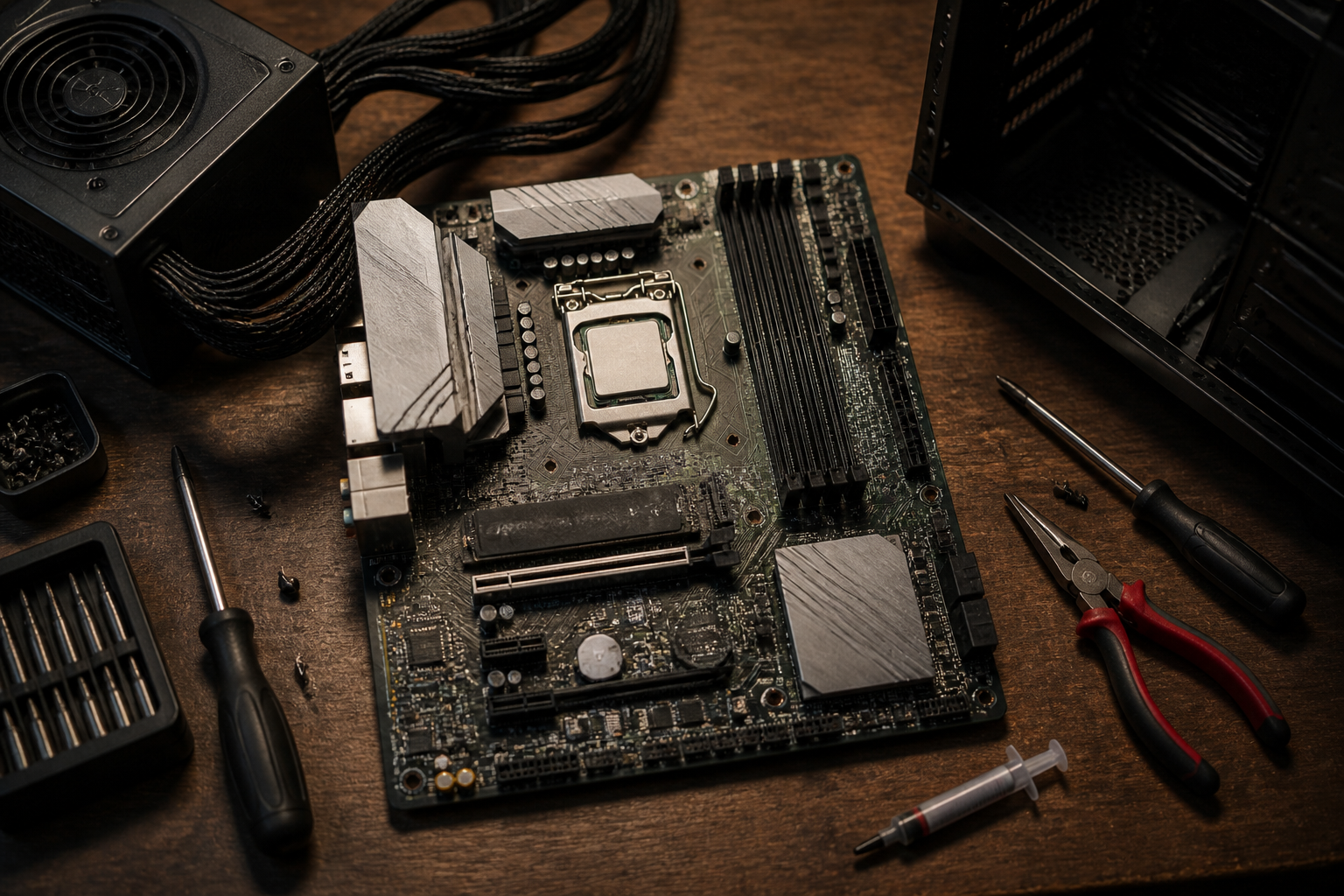
The motherboard ties it all together — it’s the main circuit board that physically and electronically connects the CPU, RAM, GPU, and storage. [5] Motherboard compatibility determines which CPU generations and RAM types will work in a given system.
Computer Parts Explained: Custom PC Build vs. Pre-Built vs. Refurbished
This is the question most buyers actually face. Here’s an honest breakdown:
Custom PC Build
Best for: Gamers, content creators, and users with specific performance requirements.
Pros:
- Exact specs chosen for your workload
- Easier to upgrade individual parts later
- Can optimize for price-to-performance
Cons:
- Requires research and time
- Component costs are higher during hardware shortages [8]
- No warranty on the build as a whole
For a custom gaming rig, check out options like the Custom Gaming PC with Intel Core i7-10700 and NVIDIA RTX 3060 — a proven configuration for 1080p and 1440p gaming.
Pre-Built Desktop or Laptop
Best for: Users who want a warranty and zero assembly.
Pros:
- Ready to use out of the box
- Manufacturer warranty
- Tested as a complete system
Cons:
- Often includes components chosen for cost, not performance (slow HDDs, minimal RAM)
- Less value per dollar than refurbished equivalents
Professionally Refurbished Computers
Best for: Budget-conscious buyers, small businesses, students, and eco-conscious shoppers.
This is where the value equation shifts dramatically. A professionally refurbished machine from a certified source goes through full hardware testing, data wiping, and component upgrades — often receiving an SSD swap, RAM upgrade, and fresh Windows 11 installation before it ships.
At Alamo Geeks, every refurbished PC meets a minimum baseline: Intel 6th-gen or newer CPU, 8GB RAM, and an SSD. That’s the floor — not the ceiling. Many units ship with 16GB RAM, NVMe SSDs, and 10th-gen or newer processors at prices well below retail.
Example: The Dell OptiPlex 3040 Micro PC with Intel Core i5, 8GB RAM, and 240GB SSD runs Windows 11 Pro and handles everyday business tasks at a fraction of new-PC cost.
What Are the Signs You Need a Computer Upgrade?
A computer doesn’t have to die to need attention. These are the clearest signals:
- Startup takes more than 60 seconds — almost always a sign the machine still has an HDD. An SSD swap fixes this.
- RAM usage consistently above 85% — the system is swapping to disk, which kills performance. Add RAM.
- CPU usage spikes to 100% during basic tasks — the processor may be too old for current software demands.
- Windows 11 incompatibility warnings — systems older than 6th-gen Intel or pre-Ryzen 2000 AMD may not meet Windows 11 requirements.
- Applications crash or freeze regularly — could be RAM, storage failure, or overheating. PC diagnostics can isolate the cause.
Edge case: Some machines feel slow not because of specs, but because of malware or bloatware consuming resources. Run a diagnostic before spending money on hardware. [3]
How to Choose the Right PC for Your Needs (Decision Framework)
Use this guide to match your workload to the right specs:
| Use Case | Minimum CPU | RAM | Storage |
|---|---|---|---|
| Email, browsing, documents | Intel i5 6th gen | 8GB DDR4 | 240GB SSD |
| Video calls, multitasking | Intel i5 8th gen | 16GB DDR4 | 256GB+ SSD |
| Light creative work | Intel i7 8th gen | 16GB DDR4 | 512GB SSD |
| Video editing, development | Intel i7 10th gen+ | 32GB DDR4/5 | 512GB NVMe SSD |
| AI workloads, 3D rendering | Intel i9 / Ryzen 9 | 32–64GB DDR5 | 1TB NVMe SSD + GPU |
| Gaming (1080p) | Intel i7 / Ryzen 5 | 16GB | 512GB NVMe + dedicated GPU |
For laptop shoppers, the Lenovo ThinkBook 14 with Intel Core i5 10th Gen and 20GB DDR4 is a strong mid-range choice. For desktop users who need more power, the Dell OptiPlex 5060 Micro PC with Core i5-8500T and 16GB RAM delivers reliable performance in a compact footprint.
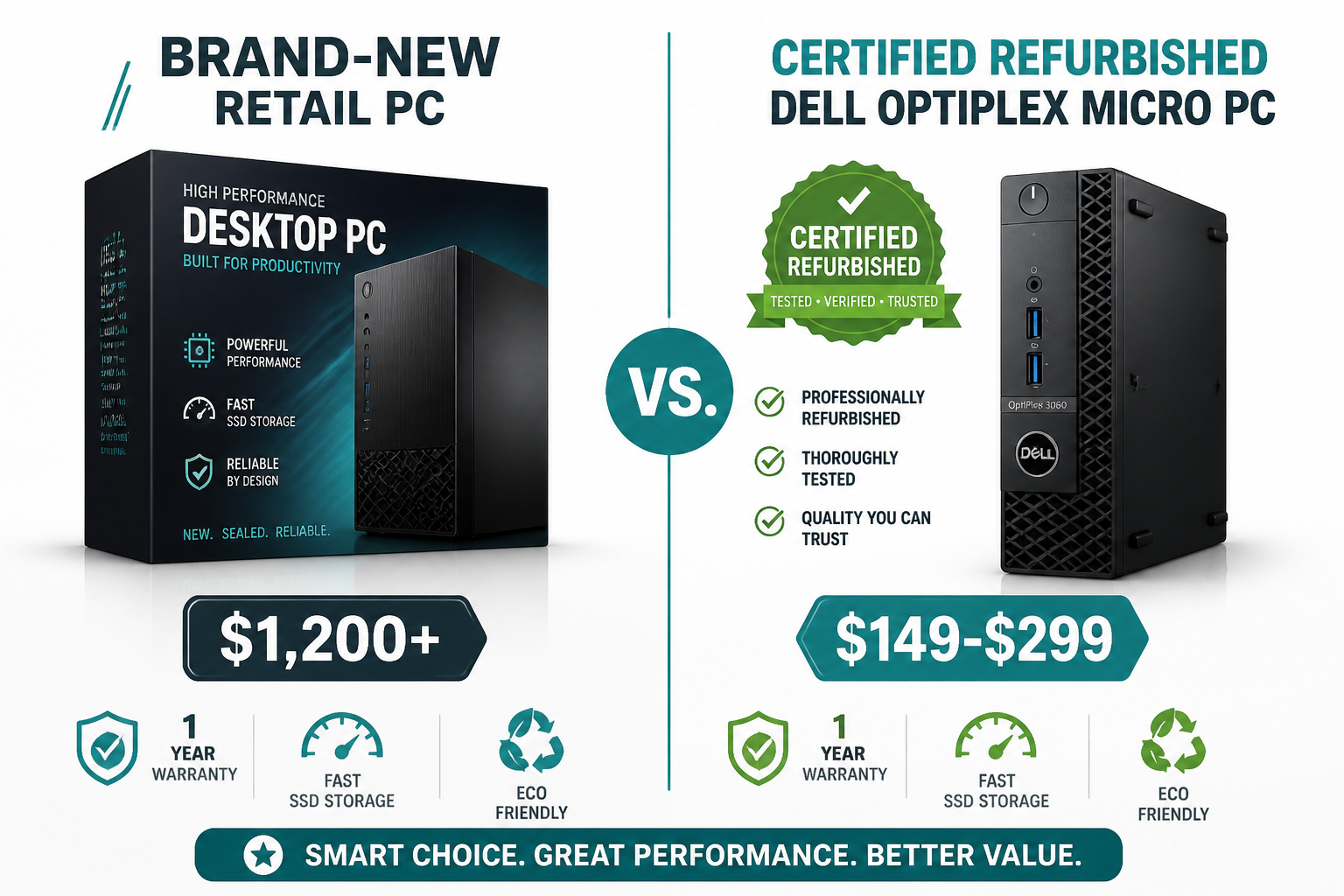
Why Refurbished Computers Are a Smart Buy in 2026
The refurbished computer market has matured significantly. Business-grade machines — Dell OptiPlex, Lenovo ThinkCentre, HP EliteDesk — are built to commercial durability standards that consumer retail PCs rarely match. When those machines cycle out of corporate fleets, they enter the refurbished market with years of useful life remaining.
Here’s what separates a quality refurbished PC from a risky one:
What to demand from any refurbished seller:
- ✅ Certified data destruction (not just a format — actual DoD-standard wipe or physical destruction)
- ✅ Hardware diagnostics report
- ✅ SSD installed (not original HDD)
- ✅ RAM at or above 8GB
- ✅ Windows 11 Pro activated
- ✅ At least a 30-day warranty
At Alamo Geeks, the process starts with Certified Data Destruction — every drive is wiped to NIST 800-88 standards before any refurbishment work begins. Then hardware is tested, upgraded where needed, and sold as Professionally Refurbished Computers with a warranty. That’s the security-to-performance pipeline in practice.
For buyers who want to explore the full inventory, the Alamo Geeks shop carries everything from compact micro PCs to high-performance workstations and custom gaming rigs.
And for businesses or individuals with old equipment to dispose of responsibly, free computer recycling is available with onsite business pickup — no landfill, no data risk.
Frequently Asked Questions
Q: What is the most important computer part for everyday use? For everyday tasks like browsing, email, and documents, RAM and storage type matter most. An SSD makes the biggest single difference in how fast a computer feels. 8GB of RAM prevents slowdowns during multitasking. The CPU matters, but a 6th-gen Intel i5 with an SSD and 8GB RAM outperforms a newer CPU paired with a slow HDD.
Q: How much RAM do I actually need in 2026? 8GB is the minimum for basic use. 16GB is the practical standard for anyone running video calls, multiple browser tabs, or productivity software simultaneously. 32GB is for developers, video editors, and AI users. [3]
Q: Is a refurbished computer reliable? Yes — when purchased from a certified refurbisher. Look for sellers who perform hardware diagnostics, certified data destruction, SSD upgrades, and offer a warranty. Business-grade refurbished machines from Dell, HP, and Lenovo are often more durable than consumer-grade new PCs.
Q: What’s the difference between DDR4 and DDR5 RAM? DDR5 is faster and more power-efficient, but it requires a compatible CPU and motherboard. Intel Core Ultra 200 and AMD Ryzen 7000/9000 require DDR5. Intel 12th–14th gen and AMD Ryzen 5000 use DDR4. You cannot mix DDR4 and DDR5 in the same system. [4]
Q: Can I upgrade a laptop’s RAM and storage? Sometimes. Many business laptops (ThinkPads, EliteBooks, Latitudes) have accessible RAM slots and M.2 SSD bays. Many consumer laptops solder RAM to the board, making upgrades impossible. Always verify before buying if upgradeability matters to you. [3]
Q: What is an NVMe SSD, and is it better than a regular SSD? NVMe (Non-Volatile Memory Express) SSDs connect via the M.2 slot and use the PCIe interface, making them 3–5x faster than SATA SSDs for sequential read/write speeds. For most users, a SATA SSD is already a massive improvement over an HDD. NVMe matters most for large file transfers, video editing, and fast boot times.
Q: How do I know if my computer needs a CPU upgrade vs. a RAM upgrade? Open Task Manager during a slow moment. If RAM usage is above 85–90%, add RAM. If RAM is fine but CPU usage is pegged at 100%, the processor is the bottleneck. If both are fine but the machine feels slow, the storage drive is likely the culprit. [3]
Q: What does a GPU do, and do I need one? A GPU (Graphics Processing Unit) renders images, video, and 3D graphics. Integrated graphics (built into the CPU) handle basic tasks fine. A dedicated GPU is necessary for gaming, video editing, 3D rendering, and AI/ML workloads. [5]
Q: Is it worth buying a computer with Windows 11 already installed? Yes. Windows 11 requires specific hardware (TPM 2.0, Secure Boot, 8th-gen Intel or newer for full support). Buying a machine with Windows 11 already activated and tested saves compatibility headaches. All Alamo Geeks refurbished PCs ship with activated Windows 11 Pro.
Q: What should I do with my old computer? Don’t throw it in the trash — e-waste is an environmental hazard. Options include selling it for parts, donating it, or recycling it responsibly. Alamo Geeks offers free computer recycling in San Antonio with certified data destruction, so your data never ends up in the wrong hands.
Conclusion: Use This Knowledge to Buy Smarter
Computer parts explained simply: the CPU thinks, RAM holds, and storage saves. Every other component supports those three functions. Once that’s clear, evaluating any PC — new, custom, or refurbished — becomes straightforward.
Actionable next steps for 2026 buyers:
- Define your workload first. Basic use needs 8GB RAM and an SSD. Creative or professional work needs 16–32GB and a fast NVMe drive.
- Don’t buy below the baseline. Any PC without an SSD will disappoint. Any machine with less than 8GB RAM will struggle within a year.
- Consider professionally refurbished before buying new. The value gap between a certified refurbished business-grade PC and a new consumer PC is significant — often 50–70% less for equivalent or better build quality.
- Recycle responsibly. Old hardware shouldn’t go to a landfill. Free recycling with certified data destruction is available in San Antonio.
- Get expert help when you need it. Whether it’s a custom build, an upgrade, or a diagnostic, working with a local specialist saves time and money.
Browse the full selection of professionally refurbished computers and laptops at Alamo Geeks — San Antonio’s authority on sustainable, high-performance tech.
References
[1] Basic Components Of A Computer – https://www.apu.apus.edu/area-of-study/information-technology/resources/basic-components-of-a-computer/
[2] Computer And Its Components – https://www.geeksforgeeks.org/computer-organization-architecture/computer-and-its-components/
[3] Ultimate Guide To Computer Hardware Parts Replacements In 2026 – https://www.newtownspares.com/blog/ultimate-guide-to-computer-hardware-parts-replacements-in-2026/
[4] Watch – https://www.youtube.com/watch?v=0B4t2mRwuhU
[5] Watch – https://www.youtube.com/watch?v=Gjr6VuUyxqc
[8] The Survivors Guide To Building A PC During The 2026 Hardware Shortage – https://face.meei.harvard.edu/all-components-of-a-computer/the-survivors-guide-to-building-a-pc-during-the-2026-hardware-shortage-insighttechdaily-com